
Getting started with your first course
Your course is waiting for you as soon as you have paid. There is no access code to type in and nothing arrives separately in the post. This walks you from signing in to opening your first lesson.
Getting started on a mobile device
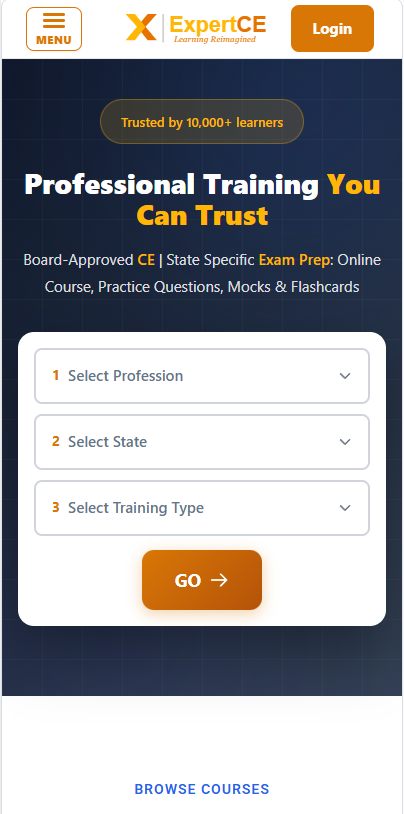
Open expertce.com and tap Login
The Login button sits in the top right corner, next to the menu. It is there on every page, so it does not matter where you land.
Sign in with the email address you bought with
The sign-in box fills the screen. Type your email address and password, then tap SIGN IN. The X in the top corner closes it if you opened it by mistake.
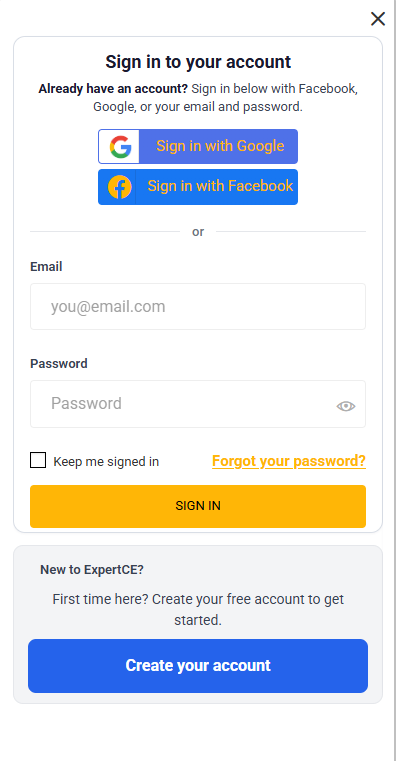
If you created your account with Google or Facebook, use the matching button at the top of the box instead of typing a password.
If you have forgotten your password, tap Forgot your password? and a reset link is sent to that same address.
Find your course under Your courses and tap Start
Signing in brings you to your home page. Scroll down to Your courses. The course cards stack one below another, each with a progress bar, and the Start button is at the bottom of each card.
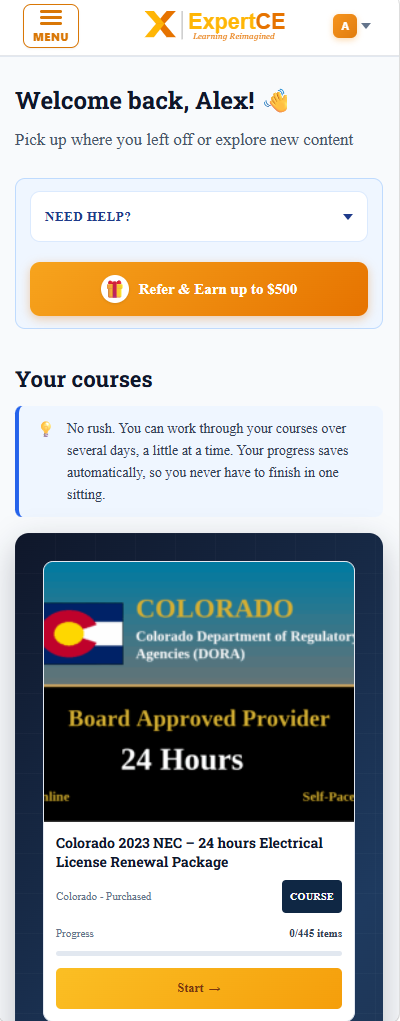
Start always opens the first lesson you have not finished. Come back tomorrow and the same button returns you to wherever you stopped, so you never have to hunt for your place.
Your certificates are further down the same page
Keep scrolling past your course cards and Your certificates is the next thing on the page. Every certificate you earn appears there as soon as you finish a course, with your name on it.
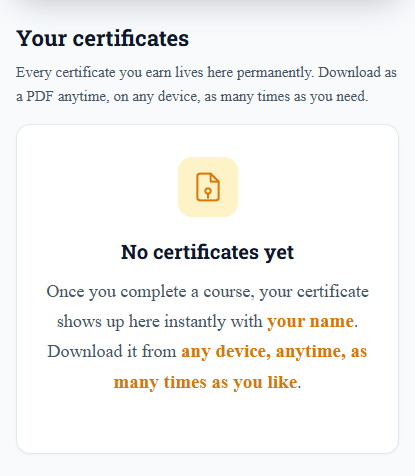
You can download a certificate as many times as you like, from any device, and there is never a charge for downloading it again. Your certificates stay there permanently, so you can download one again years later if a board or an employer asks for it.
Getting started on a laptop or desktop
Go to expertce.com and click Login
The Login button sits in the top right corner of the menu bar. It is there on every page, so it does not matter where you land.
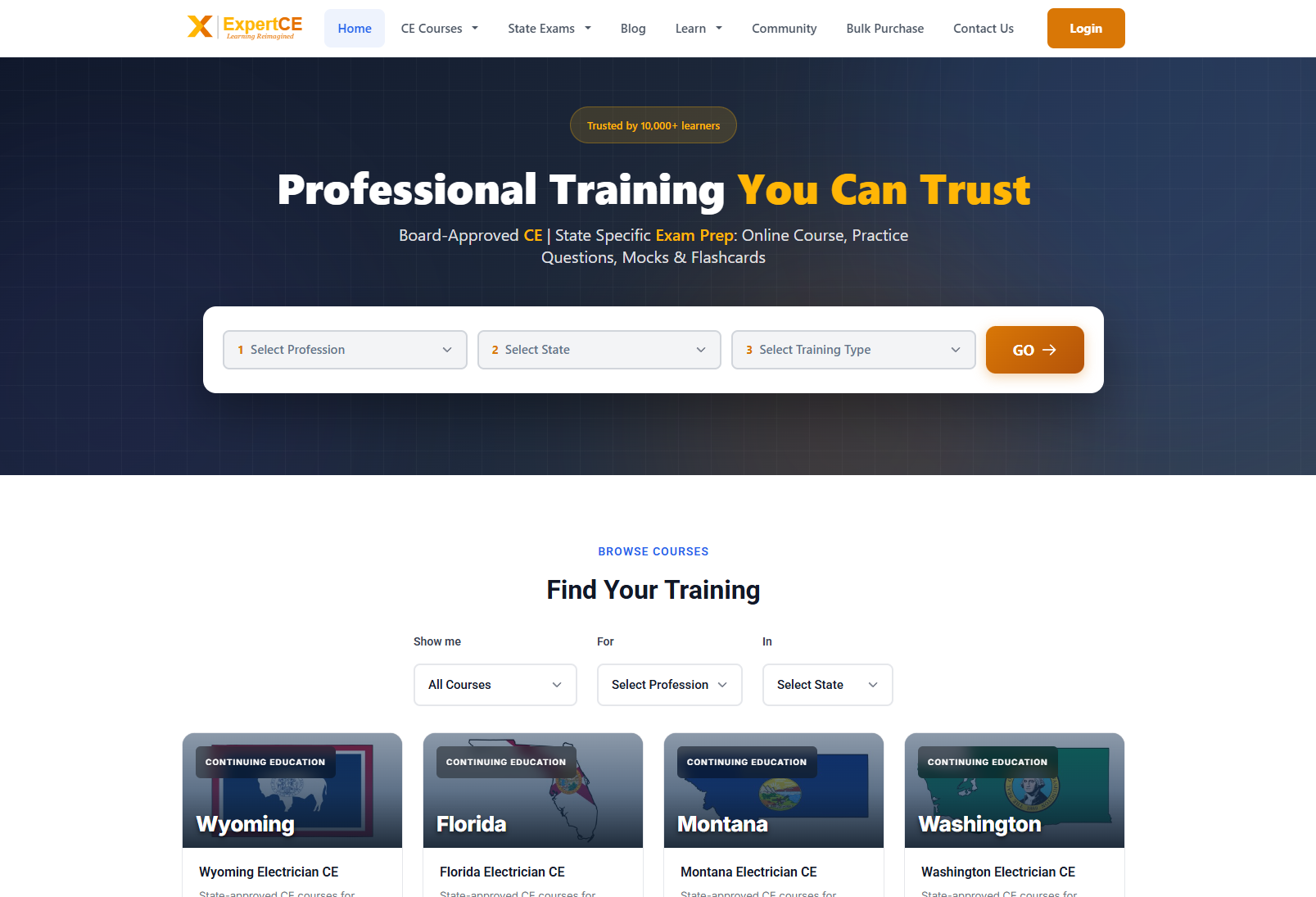
Sign in with the email address you bought with
A sign-in box opens on top of the page, so you do not lose your place. Type your email address and password, then click SIGN IN.
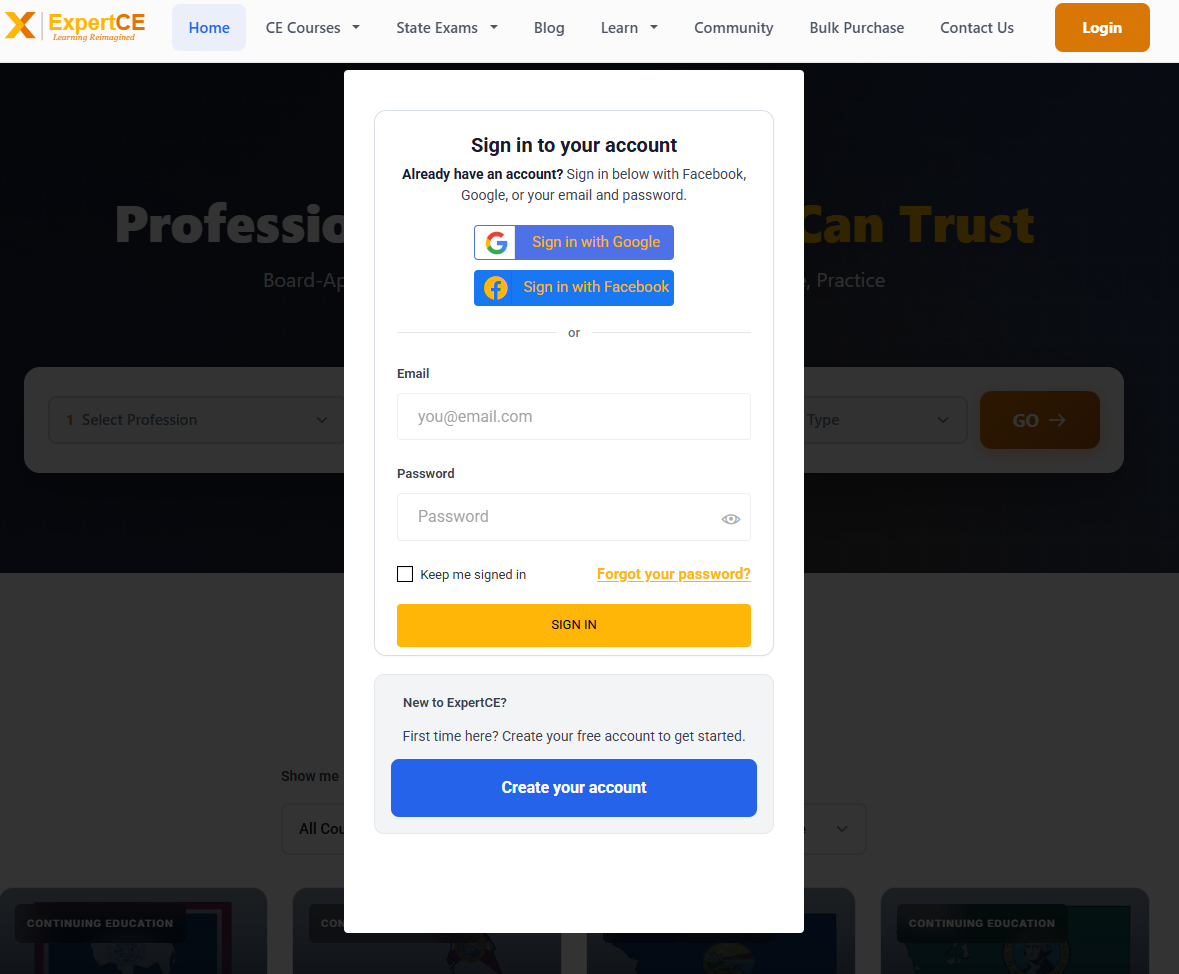
If you created your account with Google or Facebook, use the matching button at the top of the box instead of typing a password.
If you have forgotten your password, click Forgot your password? and a reset link is sent to that same address.
Find your course under Your courses and click Start
Signing in brings you to your home page. Scroll down to Your courses. Every course you have bought is there, each on its own card with a progress bar. Click Start on the one you want and the course opens.
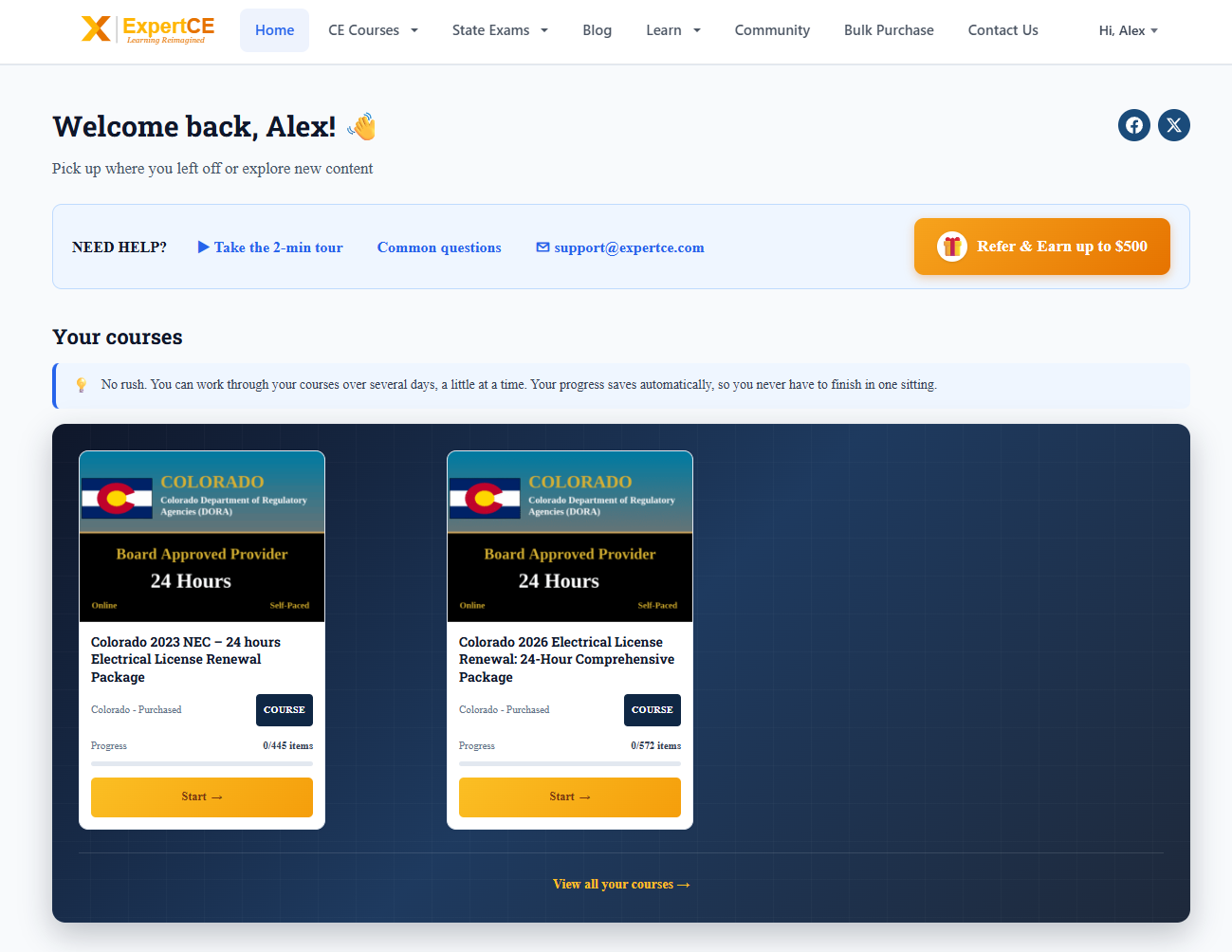
Start always opens the first lesson you have not finished. Come back tomorrow and the same button returns you to wherever you stopped, so you never have to hunt for your place.
Your certificates are on the same page
Keep scrolling past Your courses and you will find Your certificates. Every certificate you earn shows up there as soon as you finish a course, with your name on it.
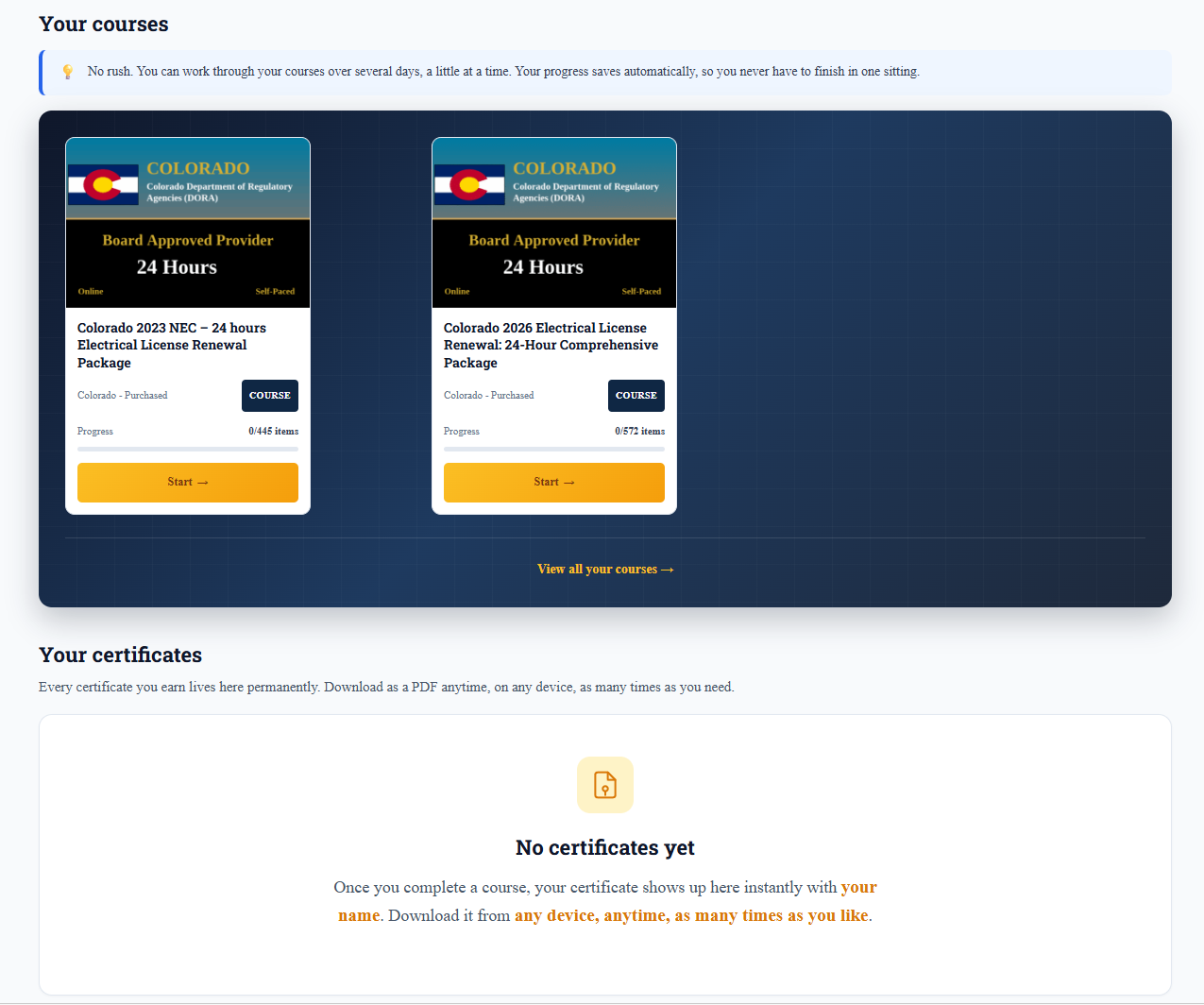
You can download a certificate as many times as you like, from any device, and there is never a charge for downloading it again. Your certificates stay there permanently, so you can download one again years later if a board or an employer asks for it.
Working through the course
There is no need to finish in one sitting. Your progress saves as you go, and the course stays under Your courses until you have finished it.
Finishing
Pass the quizzes and the Finish Course button appears at the end. Quizzes can be retaken, so a wrong answer is not the end of anything.
Your certificate is ready straight away, and we report your hours to your state board for you (where applicable).
If a course you paid for is not there
Nine times out of ten this is a second email address. Check the address your welcome email arrived at and sign in with that one.
If it still is not there, email [email protected] with your order number and we will put it right.
Still stuck? Email [email protected] and a person will answer.
 Sign in with Google